Trash Can
Use Trash Can in the CDE to view deleted documents and permanently remove documents that are no longer needed.
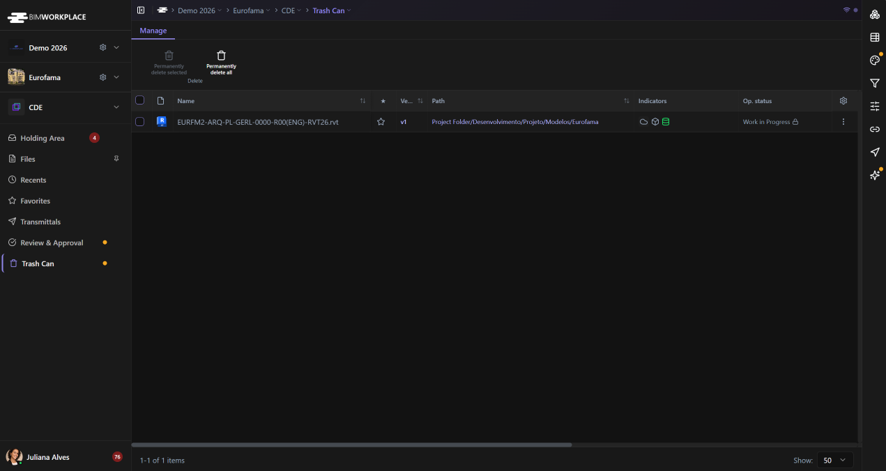
The Trash Can displays deleted documents from across the project that you have permission to permanently delete.
You can delete individual documents, select multiple documents, or permanently delete all documents available in your Trash Can.
Important: Documents cannot be restored from this page. To restore a deleted document, use Trash in the Ribbon of its original folder in Files.
Before you start
Make sure that:
- Your Workplace includes the CDE module.
- You have access to CDE > Trash Can.
- You have the required permissions to permanently delete documents.
The documents displayed in Trash Can depend on your permissions. You may not see every deleted document in the project.
Viewing deleted documents
- Open the CDE module.
- Select Trash Can from the left navigation menu.
- Browse the deleted documents displayed in the table.
- Use the available columns to identify the documents you need.
The table displays document information, including file names, metadata, and original folder paths.
You can sort the table by supported columns and adjust which columns are visible.
To locate a document's original folder, use its path in the table.
Permanently deleting selected documents
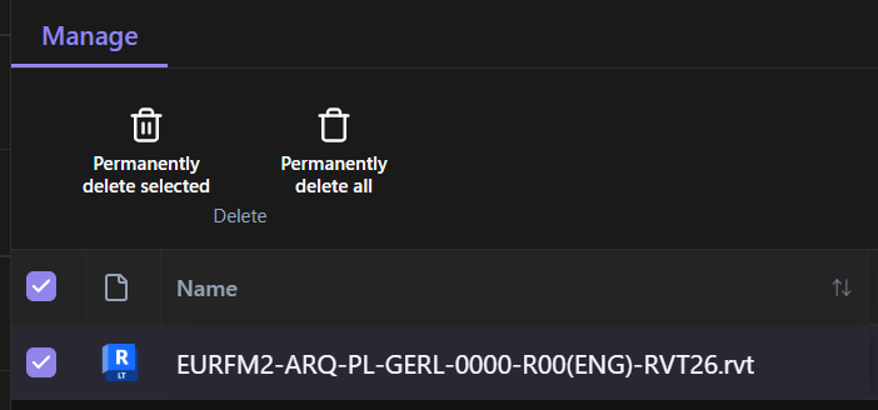
Use this option when you want to permanently remove one or more deleted documents.
- Select the documents you want to remove.
- Click Permanently delete selected.
- Review the confirmation dialog.
- Confirm the deletion.
BIMWorkplace processes the selected documents and removes them from the Trash Can when the operation succeeds.
Warning: Permanent deletion cannot be undone. Make sure the selected documents are no longer needed before confirming.
Permanently deleting all documents
Use this option when you want to permanently delete all documents available in your Trash Can.
- Click Permanently delete all.
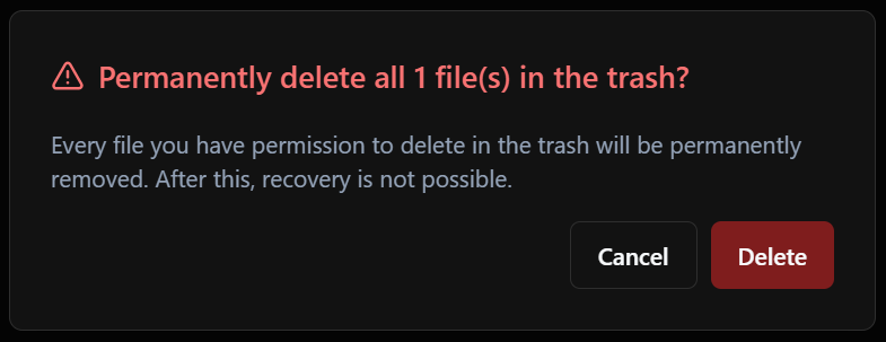
- Review the confirmation dialog, including the number of documents to be deleted.
- Confirm the operation.
- Monitor the deletion progress displayed on the page.
BIMWorkplace processes the deletion and displays its progress.
If some documents cannot be deleted, the progress panel may provide an option to retry the unsuccessful operations.
Warning: This action permanently deletes all eligible documents in your Trash Can, not just the documents displayed on the current page.
Restoring deleted documents
Documents cannot be restored directly from CDE > Trash Can.
To restore a document:
- In Files, navigate to the folder where the document was originally stored.
- Click Trash in the Ribbon.
- Find the deleted document.
- Select the document and use the available restore action.
Restoration is managed within the original folder, rather than from the project-wide Trash Can page.
Important considerations
- Restoring documents: Use Trash in the Ribbon of the original folder. Restoration is not available from the project-wide Trash Can.
- Permissions: Trash Can only displays deleted documents that you have permission to permanently delete.
- Permanent deletion: Permanently deleted documents cannot be restored through the CDE.
- Multiple documents: You can select several documents and permanently delete them in a single operation.
- Deleting all documents: The action applies to all eligible documents in your Trash Can, including documents on other pages.
- Deletion progress: When deleting all documents, the operation may take some time. Follow the progress displayed on the page before considering it complete.
Was this article helpful?